Oct 13, 2025
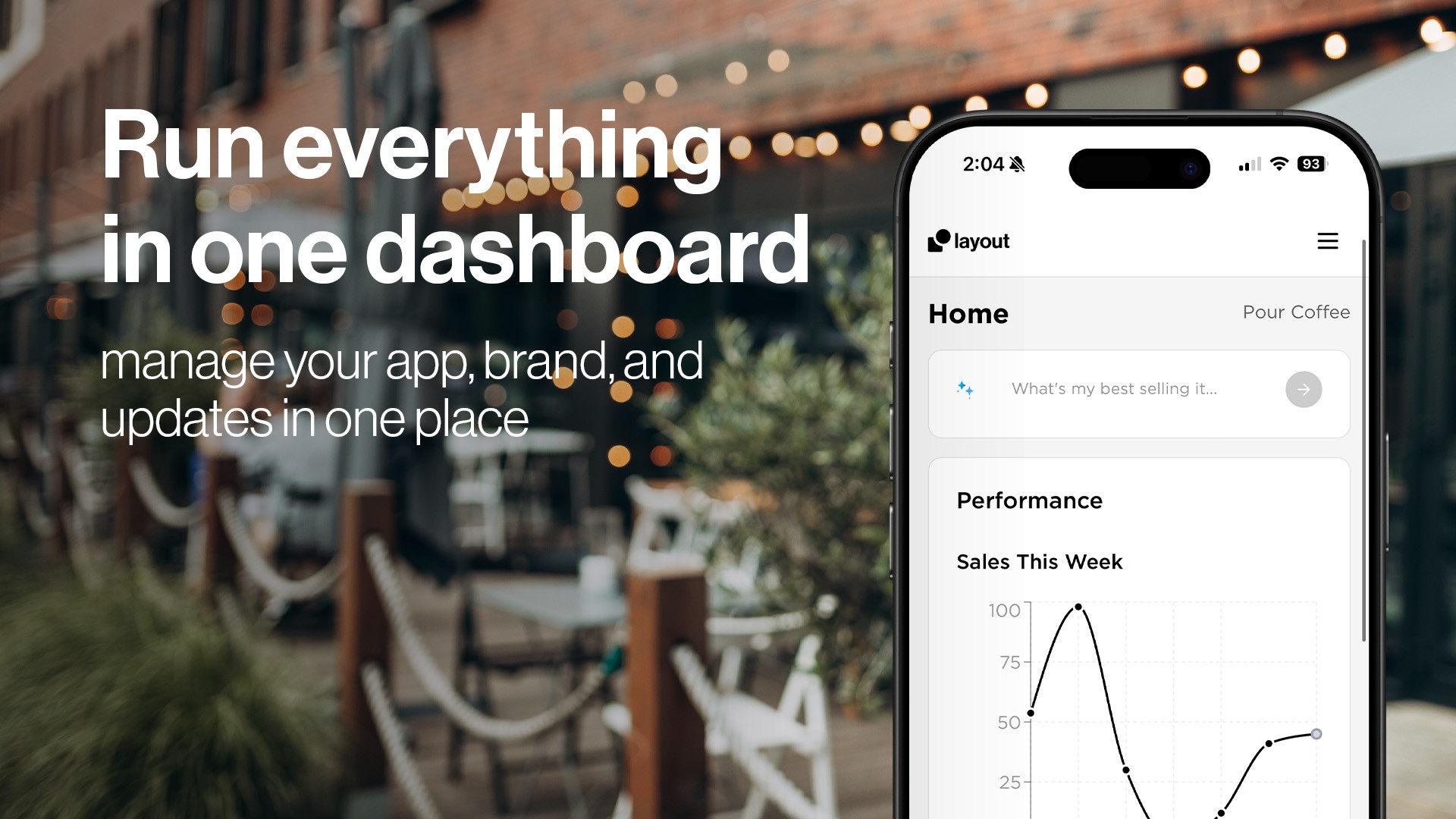
The Layout Mobile Dashboard: One Place to Manage Your App and Brand
Sign in to Layout Dashboard
Sign in to your Layout Dashboard
Home > Your Layout account
Who is this article for?
This guide is for business owners and authorized team members who need to access the Layout Dashboard at app.layoutmobile.com. Account owners can manage billing, subscription plans, and company settings.
About your Layout Dashboard
The Layout Dashboard is where you create, manage, and launch your mobile app through Layout Mobile. From one place, you can:
Customize your branding – Upload your logo, set your colors, and define your app’s look
Connect your Square account – Sync items, categories, and locations
Manage your catalog – Automatically pull products and display them in your app
Track your app build – Follow progress for App Store and Google Play submission
Send announcements – Notify customers through your app
View billing information – See your subscription details and payments
Monitor app status – See setup steps, build progress, and deployment updates
Before you begin
A Layout Dashboard account
You can sign in or create an account directly at app.layoutmobile.com. New users will automatically be guided into onboarding.
Supported browsers
Google Chrome (v90+)
Safari (v14+)
Microsoft Edge (v90+)
Firefox (v88+)
Your login details
You will need the email address and password you used when creating your Layout Dashboard account. Team members added to an existing company will receive an invitation email.
How to sign in
Step 1: Go to the dashboard
Visit app.layoutmobile.com.
Step 2: Enter your login information
Enter your email
Enter your password
Click Sign In
Step 3: Two-step verification (if enabled)
If enabled, enter the 6-digit verification code sent to your email or authenticator app.
Step 4: Access your dashboard
Once signed in, you’ll land on the main Dashboard where you will see app setup steps, recent activity, and navigation links.
After creating your account
Step 1: Start your paid plan
When you first sign in, a banner at the top of the Dashboard will direct you to view pricing and begin your subscription. Users can open the Billing tab from the left-hand menu.
Step 2: Enter billing information
After selecting a plan, enter your billing details to activate your subscription.
Step 3: Access the Setup Wizard
Once your plan is active, a card labeled Get Started will appear on your Dashboard home. The Setup Wizard guides you through:
Connecting your Square account
Setting your branding
Adding App Store listing details
Uploading icons, screenshots, and assets
Selecting catalog categories
Step 4: Confirmation
After completing the Setup Wizard, you’ll receive a confirmation email. Our team will review your app submission and reach out with updates.
How to sign out
Go to the bottom-left corner of the Dashboard
Click your profile icon
Select Sign Out
You will be securely logged out and returned to the sign-in screen.
Troubleshooting sign-in issues
“Email not found”
Verify that you’re using the email you originally registered with.
“Incorrect password”
Check for typos or use the “Forgot password?” link.
Resetting your password
Click Forgot password? at app.layoutmobile.com
Enter your account email
Use the link sent to your inbox to create a new password
“Too many attempts”
Wait 15 minutes and try again.
Inactive session
If you were signed out due to inactivity, simply log in again.
Still having issues?
Email us at support@layoutmobile.com
For account deletion concerns, email contact@layoutmoble.com
Security best practices
Use a strong, unique password
Review your account activity inside the Dashboard
Managing team access
Adding team members
Open Settings > Team Members
Click Add Team Member
Choose permissions
Send an invitation
Permission types
Full access
Branding only
Announcements only
Support tickets only
View only
What you’ll see after signing in
New accounts
You will see a banner that lets you select a plan and activate billing.
Active subscription accounts
You will see your Dashboard home with quick actions, setup steps, and app progress.
Accounts still in setup
You will return to your place in the Setup Wizard.
Browser storage and cookies
We use cookies and local storage to keep you signed in and improve your Dashboard experience.
Mobile access
The Dashboard works on mobile devices, but desktop browsers provide the best experience—especially for uploading assets or reviewing catalog data.
Still need help?
Email: support@layoutmobile.com
Account deletion: contact@layoutmobile.com
Support tickets: Submit directly from your Dashboard
Response times:
Emails: Within 24 hours
Tickets: Within 12 hours
Urgent issues: Same day
System status
About Layout Mobile
Layout Mobile helps businesses launch professional mobile apps powered by seamless Square integration, guided onboarding, and a clean dashboard experience—built for speed, simplicity, and results.